Turn an Exness chart screenshot into a graded trade plan.
Exness runs one of the largest MT4 and MT5 setups in retail forex, plus its own web and mobile Exness Terminal and a free VPS for traders who lean on an Expert Advisor. SnapPChart is not part of any of that. Drop in a screenshot of the chart and it hands back a letter grade, an entry, a stop, targets, and the strongest case against the trade, working only from what is visible in the picture, never your Exness login, your balance, your open positions, or anything an EA might be doing in the background.
Drag and drop your chart screenshot
or click to browse. PNG, JPG, or WebP.
Your first analysis is free. No credit card.
Make sure both the time axis (X) and price axis (Y) are visible in your screenshot for accurate results.
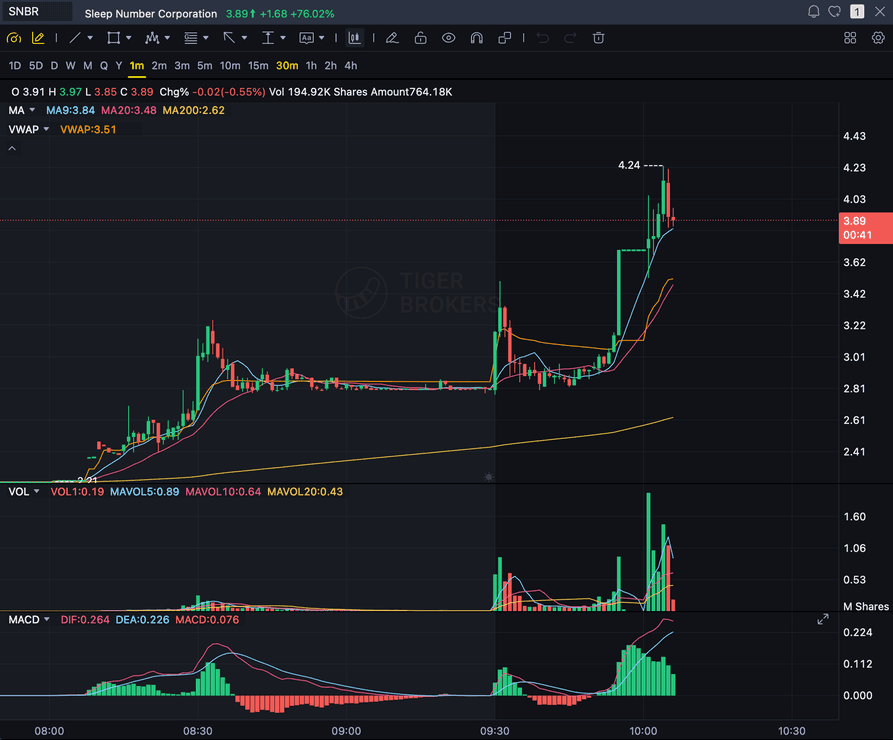
Grade
B+
Entry
$3.87
Stop
$3.75
Target
$4.24
Format example (stock chart)
SNBR 1m bull flag pullback: strong opening momentum, lighter-volume consolidation, and a late breakout attempt near 3.89. Forex, crypto and futures screenshots get the same structure: a grade, entry, structural stop and targets.
STOCKS
Momentum, breakout, pullback, and reversal setups
FOREX
Major pairs, crosses, XAUUSD, and session context
CRYPTO
Bitcoin, Ethereum, and high-beta altcoin charts
FUTURES
Index, commodity, and intraday futures screenshots
Quick answer
How do you analyze an Exness chart with AI?
Screenshot the chart wherever you trade Exness, Exness Terminal, MT4, or MT5, and upload it. SnapPChart works from the image alone, reading the candles, trend, support and resistance, volume, and whatever indicators are already on the chart, then hands back a letter grade, an entry, a stop, multiple exit targets, and the strongest reason the setup could fail.
Exness has been operating since 2008 and holds licenses across an unusually wide regulatory spread for a retail broker: the FCA in the UK, CySEC in Cyprus, the FSCA in South Africa, Jordan's JSC, the Seychelles FSA, the FSC in both Mauritius and the British Virgin Islands, and the CBCS covering Curaçao and Sint Maarten. Traders gravitate to Exness largely for its MetaTrader depth. Beyond its own Exness Terminal, the broker runs both MT4 and MT5 and throws in a free VPS so an active algo trader can keep an Expert Advisor (EA) online around the clock. None of that infrastructure touches SnapPChart. Nothing installs on your terminal, nothing sits inside Exness Terminal, MT4, or MT5 as a plugin, and nothing links to your Exness login, balance, open positions, or order history. SnapPChart only ever sees the screenshot you hand it, graded the same way a second pair of eyes would grade it. Switch from Exness Terminal to MT5 tomorrow and nothing changes on this end, because the checklist runs against the picture, not the platform underneath it.
What the AI Returns From a Screenshot
Use the output as a repeatable pre-trade checkpoint, not a prediction.
A-F Setup Grade
See whether the setup has enough pattern clarity, momentum, volume, and reward to justify the risk.
Entry, Stop, Targets
Get a structured trade plan with entry zone, invalidation level, targets, and risk/reward.
Screenshot-Based Read
Use charts from TradingView, Webull, ThinkOrSwim, MetaTrader, Robinhood, or any broker.
Risk Notes First
The analysis flags extension, messy chop, weak retests, thin reward, and conflicting indicators.
Workflow
From an Exness screenshot to a graded setup
There is no account to plug in and no EA to configure. Screenshot the chart from Exness Terminal, MT4, or MT5, upload it, and read back the grade.
- Pull up the chart in Exness Terminal, MT4, or MT5, on desktop, mobile, or a saved image
- Upload the screenshot; there is no EA to install, no plugin, and no Exness login involved
- SnapPChart reads the candles, key levels, volume, and whatever indicators are already on the chart
- Get back the A+ to F grade with an entry, a stop, targets, and the bear case
- Act on the A and B+ grades, pass on the rest, and move to the next screenshot
Head to head
SnapPChart vs reading an Exness chart by hand
Exness traders often have an EA running on a VPS while they still take discretionary trades from Exness Terminal or MT5. The EA follows rules. The manual trades do not always. A fixed grade on each screenshot gives your hand-picked setups the same kind of consistent check. Here is the side by side.
| Feature | SnapPChart | Exness charts read by hand |
|---|---|---|
| Grades discretionary trades next to your EA | Separate, consistent check | No second check |
| Reads Exness Terminal and MT5 captures alike | Same checklist | Habits differ by app |
| Gold and forex levels in pips | Stated per trade | Rounded by feel |
| Spots an over-extended move before you chase it | Flagged in bear case | Hard to see live |
| Same verdict at 3am and at the New York open | Fixed methodology | Fatigue changes it |
| Sees what your EA is calculating | Image only | You know your EA |
| History of every grade you took or skipped | Saved | Only if journaled |
Keep Learning the Setup
Use these guides to understand how SnapPChart grades the trade instead of taking the output blindly.
Common questions about Exness chart analysis
What SnapPChart actually reads from an Exness screenshot, and what it never touches.
How do I analyze an Exness chart with AI?
Take a screenshot of the chart in Exness Terminal, MT4, or MT5 and upload it to SnapPChart. The vision model reads what is actually drawn on the chart, the candles, trend, support and resistance, volume, and any indicator overlays, then hands back a setup grade, an entry, a stop, targets, and the strongest reason the trade might not work. There is no typing out the setup and no linking your Exness login.
Is SnapPChart an Exness EA or plugin?
No. Nothing installs on Exness Terminal, MT4, or MT5, and there is no Expert Advisor running in the background. SnapPChart never logs into your Exness account, so your balance, open positions, and order history stay invisible to it, and it never places, closes, or automates a single order on Exness or anywhere else. The entire analysis happens on a screenshot you choose to upload, which is also why it works the same whether you are an Exness client or trading somewhere else entirely.
Does it work with Exness Terminal, MT4, and MT5?
Yes, and it does not matter which one you prefer. Exness ships its own web and mobile Exness Terminal alongside MetaTrader 4 and MetaTrader 5, and plenty of Exness clients run an Expert Advisor on MT4 or MT5 through the broker's free VPS. SnapPChart skips all of that and just reads the chart image, so a screenshot from Exness Terminal gets graded on the exact same checklist as one from MT4 or MT5.
Does it read the indicators on my Exness chart?
Only what is visible in the screenshot. Moving averages, RSI, MACD, Bollinger Bands, volume, whatever you have plotted on the chart in Exness Terminal, MT4, or MT5 factors into the grade. An indicator you have hidden, a setting you did not display, or a signal your EA is computing in the background never reaches the model, because a picture is all it gets. Turn on what matters to you before you screenshot.
Is Exness chart analysis free to try?
Yes, two chart analyses are free for life with no card required. The first one comes back with the full breakdown so you can see exactly what SnapPChart pulls out of an Exness screenshot; the second holds some of that back to show what upgrading unlocks.
Does it place trades, run as an EA, or predict where price goes next?
No on all three. Treat it as a second pair of eyes before you click buy or sell, not a system trading for you. It will not connect to your Exness account, will not run as an Expert Advisor on your terminal, will not route or execute a single order, and will not tell you where the next candle closes. The screenshot gets graded; the decision stays with you.
Get your next Exness setup graded.
Drop a screenshot from Exness Terminal, MT4, or MT5 into the homepage upload and get back a full trade plan in seconds. Nothing to install and no card needed.
Analyze an Exness Chart Free