Grade every futures setup before you enter the trade.
Upload an ES, NQ, YM, RTY, CL, GC, or micro futures (MES, MNQ, MYM, M2K) chart screenshot from NinjaTrader, Tradovate, ThinkOrSwim, or TradingView and get an AI setup grade, entry, stop loss, targets, and risk notes before you enter.
Drag and drop your chart screenshot
or click to browse. PNG, JPG, or WebP.
Your first analysis is free. No credit card.
Make sure both the time axis (X) and price axis (Y) are visible in your screenshot for accurate results.
Market
NQ
Chart
15m
Read
Reversal
Risk
Overhead
Futures readout
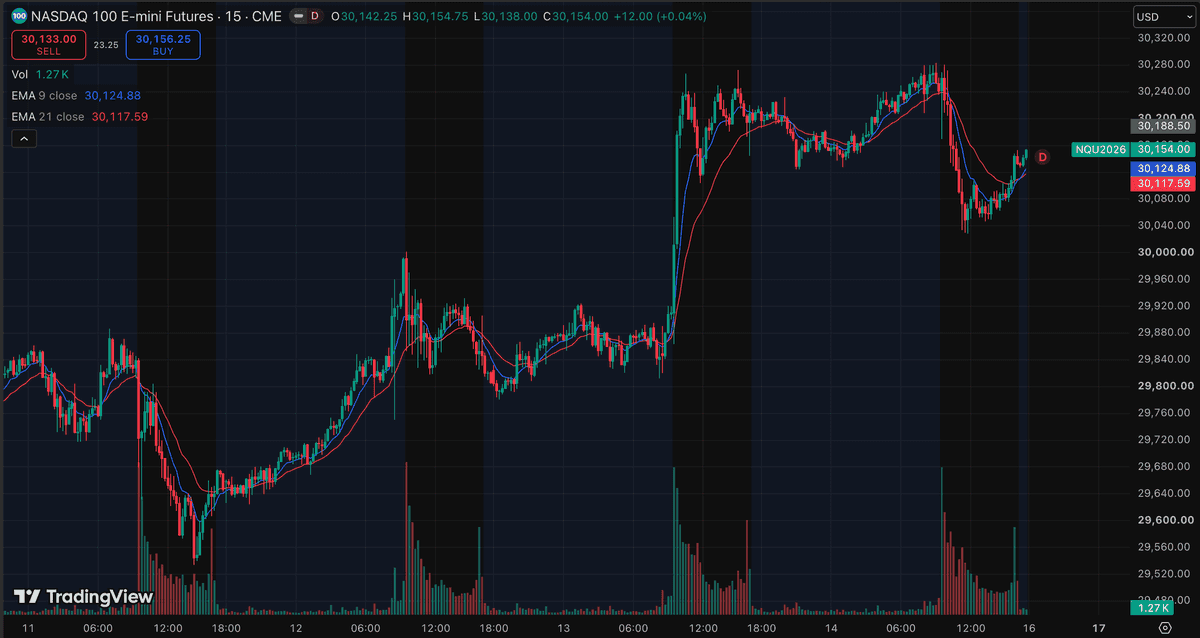
Futures sample readout: this NQ 15-minute chart lifts off 29,860 on a sharp increase in buying volume, then prints a higher high at 30,285 that turns the short-term trend up, and the 9 EMA has crossed back above the 21 EMA on the right edge. Concern: the 30,150 shelf that held as support through the prior session broke on the selloff and now sits overhead, so a long started here is working directly into the level that has to clear first.
ES
S&P 500 futures structure and momentum
NQ
Nasdaq-100 futures breakouts and pullbacks
CL
Crude oil futures trend and reversal setups
GC
Gold futures levels and continuation setups
Quick answer
Can AI grade a futures chart?
Yes. AI futures chart analysis means uploading a screenshot of a futures contract chart, such as ES, NQ, CL, or GC, and having a model grade the setup before you enter. SnapPChart reads the candles, trend, support and resistance, volume, and indicators from the image, then returns a grade from A+ to F with an entry, a structural stop, and targets.
The grading works the same whether you trade full-size CME contracts (ES, NQ, YM, RTY, CL, GC) or the micros (MES, MNQ, MYM, M2K), and whether the screenshot comes from NinjaTrader, Tradovate, ThinkOrSwim, TradingView, or any other futures platform. Because the read comes from the image, what you capture is what gets graded: a regular-hours chart and one that includes the overnight session show different ranges for the same contract, so the levels the grade quotes are the levels visible in the screenshot you chose. It does not connect to a live price feed, the dollar index, a news calendar, order flow data, or your broker's margin requirements, and it prices risk in chart levels rather than ticks, so converting a stop to contract risk stays yours: a 0.25-point ES tick is $12.50 and a full point is $50, against $1.25 and $5 on the MES micro. For a leveraged, fast-moving market, the value is the same read every time, so a clean ES setup and a chased NQ breakout get graded against the same bar.
What the AI Returns From a Screenshot
Use the output as a repeatable pre-trade checkpoint, not a prediction.
A-F Setup Grade
See whether the setup has enough pattern clarity, momentum, volume, and reward to justify the risk.
Entry, Stop, Targets
Get a structured trade plan with entry zone, invalidation level, targets, and risk/reward.
Screenshot-Based Read
Use charts from TradingView, Webull, ThinkOrSwim, MetaTrader, Robinhood, or any broker.
Risk Notes First
The analysis flags extension, messy chop, weak retests, thin reward, and conflicting indicators.
Workflow
Grade the futures setup before you enter
Futures contracts move fast and carry leverage that can amplify a bad entry. SnapPChart gives you a consistent checkpoint on the chart in front of you before you commit contracts to the trade.
- Grade an ES or NQ breakout before you chase the move
- Check a CL or GC pullback into VWAP or a prior level
- Compare a micro contract (MES, MNQ) setup against the standard contract chart
- Review the entry, stop, targets, and bear case before sizing into a futures position
- Use it as a pre-trade check before risking a funded or prop-firm evaluation account
- Re-grade the setup after a pullback to see if the entry got cleaner
Head to head
SnapPChart vs a general AI chat assistant for futures chart analysis
A general AI chat tool can describe an ES or NQ chart, but it does not return the same structured fields on every contract. SnapPChart grades every futures setup to the same standard, so an ES read today is comparable to an NQ read tomorrow.
| Feature | SnapPChart | General AI chat assistant |
|---|---|---|
| Reads futures chart screenshots (ES, NQ, CL, GC, and more) | Yes, every upload | Inconsistent |
| Setup grade (A+ to F) | Yes | No |
| Entry, stop, and targets on the contract's price scale | Yes | Varies by prompt |
| Flags an already-extended move before you chase it | Every bear case | Rarely flagged |
| Same criteria across ES, NQ, CL, and GC | Fixed methodology | Varies by session |
| Grade history to review your futures setups | Yes | No |
Keep learning the futures grading workflow
Platform guides and a prop-firm grader for traders working through a futures setup or evaluation.
What do traders ask about AI futures chart analysis?
How SnapPChart grades futures contract chart screenshots.
Does AI grade futures charts, not just stocks and forex?
Yes. Futures is a first-class asset class in SnapPChart, alongside stocks, forex, and crypto. Upload a screenshot of the futures contract you're watching and the AI reads the candles, trend, support and resistance, volume, and indicators from the image, then returns a setup grade, entry zone, structural stop, targets, and the bear case.
Which futures contracts does SnapPChart grade?
Any futures chart you can screenshot: index futures like ES, NQ, YM, and RTY, commodity futures like CL and GC, and the micro contracts (MES, MNQ, MYM, M2K) traders use for smaller size. The AI reads the chart image, not the ticker, so the grading works the same across contracts.
Does the AI need a live price feed to grade a futures chart?
No. SnapPChart does not connect to a live price feed, the dollar index, a news calendar, or your broker's margin data. It reads the chart image you upload, the candles, indicators, and levels visible in the screenshot, and grades the structure in front of it. Take the screenshot when you want a read.
Does it work with NinjaTrader, Tradovate, ThinkOrSwim, or TradingView screenshots?
Yes. SnapPChart reads the chart image, not the platform. Screenshots from NinjaTrader, Tradovate, ThinkOrSwim, TradingView, or any other futures charting platform all work the same way.
Is it useful for prop firm futures evaluations?
Traders working through a futures funded evaluation, such as Topstep or a similar prop firm, use SnapPChart the same way as any other futures setup: as a pre-entry check on the chart before risking the evaluation account. See the dedicated Topstep grader page for evaluation-specific context.
Does SnapPChart account for contract rollover or expiration?
No. The AI reads the chart image only. It does not track which contract month you're viewing, rollover dates, or expiration. Make sure the chart you screenshot is the contract you actually intend to trade before you grade it.
Is there a free trial for futures traders?
Yes. New users get 2 lifetime chart analyses to test the grader on a real futures setup, no credit card required. The first analysis shows the full output; the second is gated so you can see what the paid product adds.
Grade your futures setup before you enter.
Upload the ES, NQ, CL, GC, or any futures chart screenshot and get a setup grade, trade plan, and risk notes in seconds. No credit card required to start.
Grade a Futures Chart Free