Screenshot your Bookmap chart, get a graded trade plan back.
SnapPChart reads a Bookmap chart screenshot the way you do, the candles, the levels, and whatever liquidity heatmap, DOM, or order-flow visuals you have on the chart, then returns a setup grade, entry, stop, targets, and the main reason it could fail. No plugin, no add-on, no account connection. SnapPChart does not connect to Bookmap, does not read live order flow, the liquidity heatmap, or order-book data in real time, and does not run as a Bookmap plugin or add-on. It reads the picture you upload, not your platform or a live data feed.
Drag and drop your chart screenshot
or click to browse. PNG, JPG, or WebP.
Your first analysis is free. No credit card.
Make sure both the time axis (X) and price axis (Y) are visible in your screenshot for accurate results.
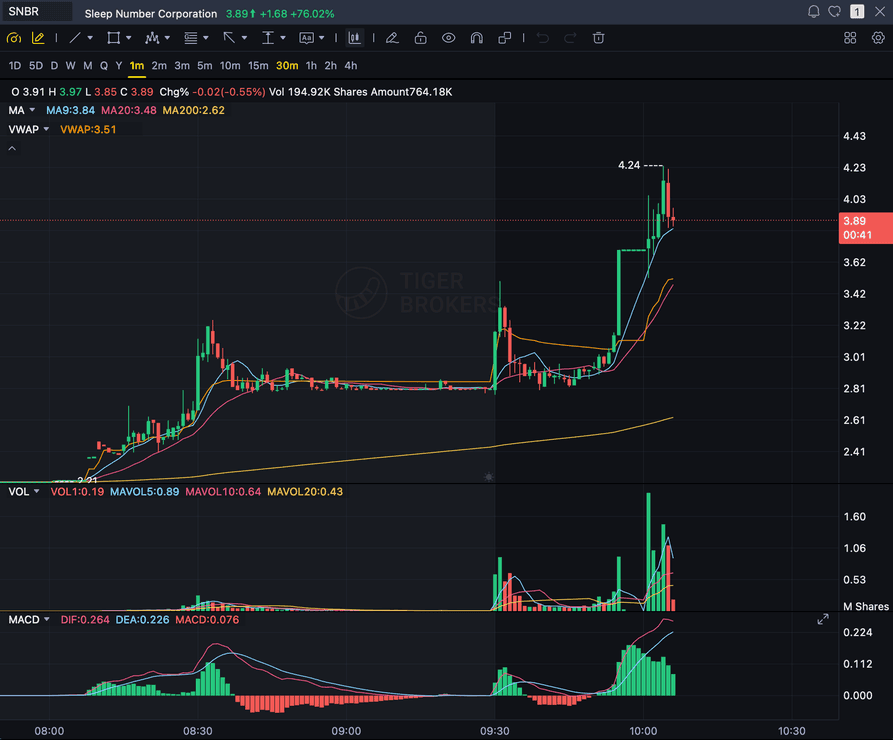
Grade
B+
Entry
$3.87
Stop
$3.75
Target
$4.24
Format example (stock chart)
SNBR 1m bull flag pullback: strong opening momentum, lighter-volume consolidation, and a late breakout attempt near 3.89. Forex, crypto and futures screenshots get the same structure: a grade, entry, structural stop and targets.
LIQUIDITY HEATMAP
Bookmap's 125 FPS proprietary order-book heatmap visualization
FUTURES & CRYPTO
Order-flow and liquidity setups across futures and crypto markets
DISCORD & WEBINARS
Daily live webinars streamed to Discord and YouTube, plus an active forum
NO GRADING
Heatmap and order-flow indicators for a manual read, no native AI that grades the setup
Quick answer
How do you analyze a Bookmap chart with AI?
You screenshot the chart in Bookmap and upload the image. SnapPChart reads the screenshot directly, the candles, trend, support and resistance, volume, and whatever liquidity heatmap, DOM, or order-flow visuals are on the chart, then grades the setup A+ to F with an entry, a structural stop, multi-target exits, and a bear case. Bookmap is a proprietary order-book heatmap visualization platform built for futures and crypto order-flow and liquidity traders, rendering the heatmap at up to 125 FPS, and it has built real community around that: a Discord chatroom and forum, daily live webinars streamed to Discord and YouTube, and active third-party tutorial channels like Bookmap4u. Bookmap does not ship a native AI chart-grading assistant, its own features are order-flow and heatmap indicators you read yourself, not a model that grades the setup, so this is the fastest honest answer to which AI can read a Bookmap screenshot: you do not install a plugin or add-on, you do not connect an API, and the analyzer does not connect to Bookmap or read your live order flow, liquidity heatmap, DOM, or order book in real time, because it only reads the static picture you upload, not your platform or a live data feed. That fits the order-flow workflow. Screenshot a futures or crypto chart with the heatmap showing whatever you were watching, and the same grading checklist runs on every screenshot so a strong setup and a weak one get judged the same way.
What the AI Returns From a Screenshot
Use the output as a repeatable pre-trade checkpoint, not a prediction.
A-F Setup Grade
See whether the setup has enough pattern clarity, momentum, volume, and reward to justify the risk.
Entry, Stop, Targets
Get a structured trade plan with entry zone, invalidation level, targets, and risk/reward.
Screenshot-Based Read
Use charts from TradingView, Webull, ThinkOrSwim, MetaTrader, Robinhood, or any broker.
Risk Notes First
The analysis flags extension, messy chop, weak retests, thin reward, and conflicting indicators.
Workflow
How do you turn a Bookmap screenshot into a graded setup?
You do not connect your account or export any order-flow data. Screenshot the chart in Bookmap, drop the image in, and read the grade before you commit size.
- Screenshot any futures or crypto symbol's chart in Bookmap, heatmap and candles together
- Upload the image, with no plugin, no API, and no live order-flow or DOM data pulled in
- The analyzer reads candles, levels, volume, and whatever heatmap or DOM visuals are visible on your chart
- Read the A+ to F grade, entry, stop, targets, and the bear case
- Pass on the C and F setups, then screenshot the next chart
Head to head
SnapPChart vs a general AI chat assistant for a Bookmap screenshot
Most order-flow and liquidity traders land here after pasting a Bookmap heatmap screenshot into a general AI tool and getting a vague paragraph back. Here is how a purpose-built screenshot grader compares for the last read before you commit size.
| Feature | SnapPChart | General AI chat assistant |
|---|---|---|
| Reads your Bookmap heatmap screenshot | Every upload | Inconsistent |
| Setup grade (A+ to F) on a futures or crypto order-flow chart | Yes | No |
| Entry, structural stop, and multi-target exits | Every upload | Varies by prompt |
| Reads the liquidity heatmap, DOM, and volume visuals on the chart | From the image | Varies by prompt |
| Bear case / invalidation called out | Every grade | Rarely flagged |
| Same criteria on every futures or crypto Bookmap chart | Fixed methodology | Varies by session |
| Reads live order flow, the DOM, the liquidity heatmap, or the order book in real time | No, screenshot only | No |
Keep Learning the Setup
Use these guides to understand how SnapPChart grades the trade instead of taking the output blindly.
What do traders ask about Bookmap Chart Analysis?
How the AI reads a Bookmap screenshot and what it returns.
How do I analyze a Bookmap chart with AI?
Screenshot the chart in Bookmap, then upload the image to SnapPChart. A multimodal vision model reads the candles, trend, support and resistance, volume, and whatever liquidity heatmap, DOM, or order-flow visuals are visible directly from the picture, then returns a setup grade, an entry, a structural stop, targets, and the main reason the trade could fail. You do not type out what the chart shows or connect your Bookmap account.
Is SnapPChart a Bookmap plugin or add-on?
No. There is nothing to install into Bookmap, no plugin, no add-on, and no API to connect. SnapPChart reads the screenshot you upload, so it works alongside Bookmap without being part of it and without running as a Bookmap plugin or add-on. It does not connect to Bookmap, and it does not read your live order flow, liquidity heatmap, DOM, or order book in real time. That is on purpose: reading the image instead of a live feed is what lets the same tool grade a chart from Bookmap, Sierra Chart, or any other platform.
Does it read my liquidity heatmap, DOM, or order-flow data?
It reads whatever is visible in the screenshot. If your Bookmap chart shows the liquidity heatmap, a DOM ladder, volume profile, or other order-flow indicators, the analyzer factors what it can see in that static image into the grade. It does not connect to Bookmap, does not read live order-flow, heatmap, liquidity, or order-book data in real time, and it does not run inside Bookmap as a plugin. If a level or signal is not visible in the screenshot, the grade does not use it.
Does it work for futures and crypto order-flow setups?
Yes. Bookmap is built for futures and crypto order-flow and liquidity trading, and the analyzer reads the chart image, not the asset class, so a futures heatmap screenshot and a crypto heatmap screenshot are graded the same way. It does not pull live liquidity, funding, or order-book data on its own, so show whatever context you rely on, like the heatmap, VWAP, or volume, directly on the chart before you screenshot.
Is Bookmap chart analysis free to try?
Yes. New users get two lifetime chart analyses, no credit card required. The first analysis shows the full depth so you can see exactly what the AI returns from a Bookmap screenshot; the second is gated to show what the paid product adds.
Does it place trades or read live order flow to predict where price goes next?
No. It is a pre-trade decision layer, not an autonomous trader and not a price predictor. It grades the setup in the screenshot so your process stays repeatable. It does not connect to Bookmap, does not read live order flow, the liquidity heatmap, the DOM, or the order book in real time, does not place or route orders, and does not call the next candle. You stay the decision-maker.
Grade your next Bookmap chart.
Screenshot a heatmap chart in Bookmap, upload it from the homepage, and get a graded trade plan in seconds. No plugin and no credit card required.
Analyze a Bookmap Chart Free