Screenshot your TradeZero chart, get a graded trade plan back.
SnapPChart reads a ZeroPro or ZeroWeb chart screenshot the way you do, the candles, the levels, and whatever indicators you have on the chart, then returns a setup grade, entry, stop, targets, and the main reason it could fail. No account connection, no API, no plugin or add-on. It reads the picture you upload, so it grades the actual setup on your TradeZero chart instead of touching your account.
Drag and drop your chart screenshot
or click to browse. PNG, JPG, or WebP.
Your first analysis is free. No credit card.
Make sure both the time axis (X) and price axis (Y) are visible in your screenshot for accurate results.
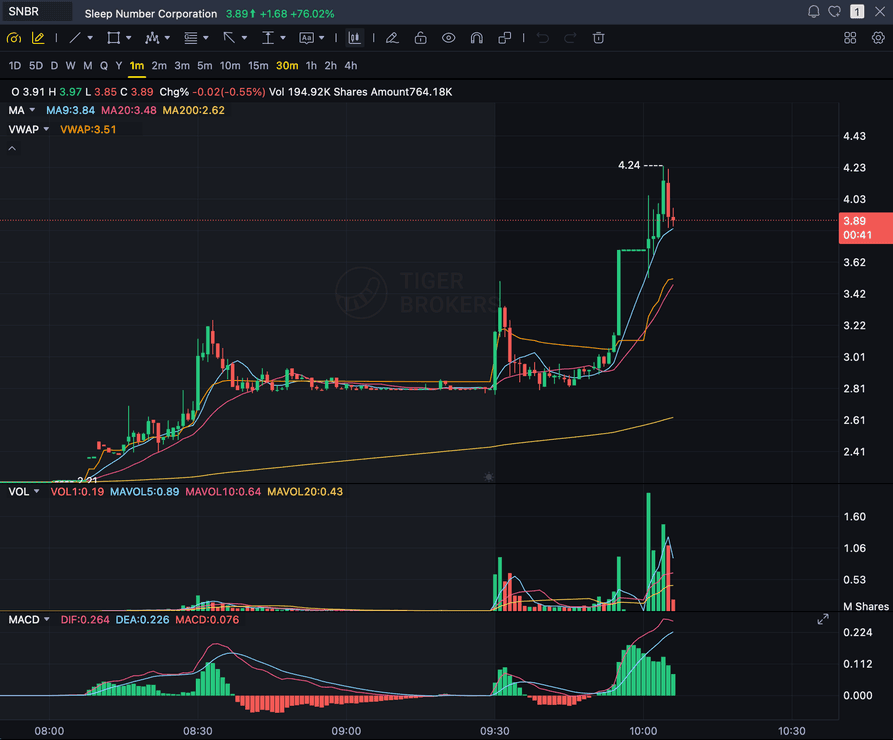
Grade
B+
Entry
$3.87
Stop
$3.75
Target
$4.24
Sample readout
SNBR 1m bull flag pullback: strong opening momentum, lighter-volume consolidation, and a late breakout attempt with the 3.89 price marker near the current candle.
STOCKS
Momentum, breakout, pullback, and reversal setups
FOREX
Major pairs, crosses, XAUUSD, and session context
CRYPTO
Bitcoin, Ethereum, and high-beta altcoin charts
FUTURES
Index, commodity, and intraday futures screenshots
Quick answer
How do you analyze a TradeZero chart with AI?
You screenshot the chart in ZeroPro, ZeroWeb, or TZ1 and upload the image. SnapPChart reads the screenshot directly, the candles, trend, support and resistance, volume, and any indicators you have on the chart, then grades the setup A+ to F with an entry, a structural stop, multi-target exits, and a bear case. TradeZero is a zero-commission brokerage popular with active day traders and short sellers, and its proprietary platforms carry their own charting, ZeroPro is the downloadable desktop platform with 80-plus technical indicators, a multi-monitor layout engine, scanners, Level 2, and order tickets, while ZeroWeb is the browser platform with tick-by-tick sync, so this is the fastest honest answer to which AI can read a TradeZero screenshot: you do not link your TradeZero account, you do not connect an API, there is no plugin or add-on, and it does not route or place orders, read your live TradeZero feed, read the Level 2 or scanner data, scan the market, or predict the next candle, because the analyzer reads the picture, not your platform or a data feed. ZeroPro and ZeroWeb are TradeZero's own proprietary charting, not MetaTrader and not TradingView, so a TradeZero screenshot has its own look, and that is fine, the grader reads the chart in the image rather than the software behind it. That also means it is platform-agnostic. The same upload works whether you chart on ZeroPro desktop, ZeroWeb, or TZ1, and the same grading checklist runs on every screenshot so a strong setup and a weak one get judged the same way.
What the AI Returns From a Screenshot
Use the output as a repeatable pre-trade checkpoint, not a prediction.
A-F Setup Grade
See whether the setup has enough pattern clarity, momentum, volume, and reward to justify the risk.
Entry, Stop, Targets
Get a structured trade plan with entry zone, invalidation level, targets, and risk/reward.
Screenshot-Based Read
Use charts from TradingView, Webull, ThinkOrSwim, MetaTrader, Robinhood, or any broker.
Risk Notes First
The analysis flags extension, messy chop, weak retests, thin reward, and conflicting indicators.
Workflow
How do you turn a TradeZero screenshot into a graded setup?
You do not connect your account or rebuild the chart. Screenshot it in ZeroPro, ZeroWeb, or TZ1, drop the image in, and read the grade.
- Screenshot any symbol on any timeframe in ZeroPro desktop, ZeroWeb, or TZ1
- Upload the image, with no account connection, no API, and no plugin or add-on
- The analyzer reads candles, levels, volume, and the indicators visible on your chart
- Read the A+ to F grade, entry, stop, targets, and the bear case
- Pass on the C and F setups, then screenshot the next chart
Head to head
SnapPChart vs a general AI chat assistant for chart screenshots
Most traders land here after pasting a chart into a general AI tool and getting a vague description. Here is how a purpose-built screenshot grader compares for the last decision before you risk money.
| Feature | SnapPChart | General AI chat assistant |
|---|---|---|
| Reads any chart screenshot | Every upload | Inconsistent |
| Setup grade (A+ to F) | Yes | No |
| Entry, stop, and targets | Every upload | Varies by prompt |
| Same criteria every time | Fixed methodology | Varies by prompt |
| Multi-target exit plan (T1 / T2) | Yes | Rarely consistent |
| Risk/reward + invalidation | Yes | Inconsistent |
| Speed to a decision | Seconds | Prompting required |
| Grade history to review | Yes | No |
Keep Learning the Setup
Use these guides to understand how SnapPChart grades the trade instead of taking the output blindly.
What do traders ask about TradeZero Chart Analysis?
How the AI reads a TradeZero screenshot and what it returns.
How do I analyze a TradeZero chart with AI?
Screenshot the chart in ZeroPro, ZeroWeb, or TZ1, then upload the image to SnapPChart. A multimodal vision model reads the candles, trend, support and resistance, volume, and any visible indicators directly from the picture, then returns a setup grade, an entry, a structural stop, targets, and the main reason the trade could fail. You do not type out what the chart shows or connect your TradeZero account.
Is SnapPChart a TradeZero plugin or account integration?
No. There is nothing to install, no API to connect, and no TradeZero account to link. SnapPChart reads the screenshot you upload, so it works with ZeroPro and ZeroWeb without being part of them. That is on purpose: reading the image instead of your platform or a data feed is what lets the same tool grade a chart from TradeZero, another broker, TradingView, or any other platform.
Does it work with ZeroPro, ZeroWeb, and TZ1?
Yes. ZeroPro is TradeZero's downloadable desktop platform with 80-plus technical indicators, a multi-monitor layout engine, scanners, Level 2, and order tickets, ZeroWeb is the browser platform with tick-by-tick sync, and TZ1 is the newer browser platform. Which charting engine sits behind it does not matter, because the analyzer reads the chart image, not the charting software. Capture the chart on ZeroPro desktop, ZeroWeb, or TZ1, upload the screenshot, and the same grading checklist runs on it.
What can I analyze from a TradeZero chart?
TradeZero is equities-focused, so the US stocks, ETFs, and options charts you screenshot in ZeroPro or ZeroWeb are in scope as long as the candles, timeframe, and price scale are visible. The grader reads the price chart you are basing the trade on, not the scanner list or the Level 2 window, so screenshot the actual setup you want graded.
Does it read the indicators on my TradeZero chart?
It reads the indicators that are visible in the screenshot. ZeroPro carries 80-plus technical indicators, and if you have moving averages, VWAP, RSI, MACD, or volume showing on the chart, the analyzer factors what it can see into the grade. It cannot read an indicator you have hidden, your Level 2 data, or a scanner column that is not in the picture, because it only has the chart image. Show the levels you care about before you screenshot.
Is TradeZero chart analysis free to try?
Yes. New users get two lifetime chart analyses, no credit card required. The first analysis shows the full depth so you can see exactly what the AI returns from a TradeZero screenshot; the second is gated to show what the paid product adds.
Does it place trades or predict where price goes next?
No. It is a pre-trade decision layer, not an autonomous trader and not a price predictor. It grades the setup in the screenshot so your process stays repeatable. It does not connect to TradeZero, does not route or place orders, does not read your live TradeZero feed, does not read the Level 2 or scanner data, does not scan the market, and does not call the next candle. You stay the decision-maker.
Grade your next TradeZero chart.
Screenshot a chart in ZeroPro, ZeroWeb, or TZ1, upload it from the homepage, and get a graded trade plan in seconds. No account connection and no credit card required.
Analyze a TradeZero Chart Free